What Can Each User Role Do? (Role Permissions Reference)
Overview
Every person you invite to SmartProperty is given a role. The role decides which areas of the product that person can open, and whether they can change anything in each one.
Roles work alongside property access. The role sets what a person can do. Property access sets which properties they can do it in.
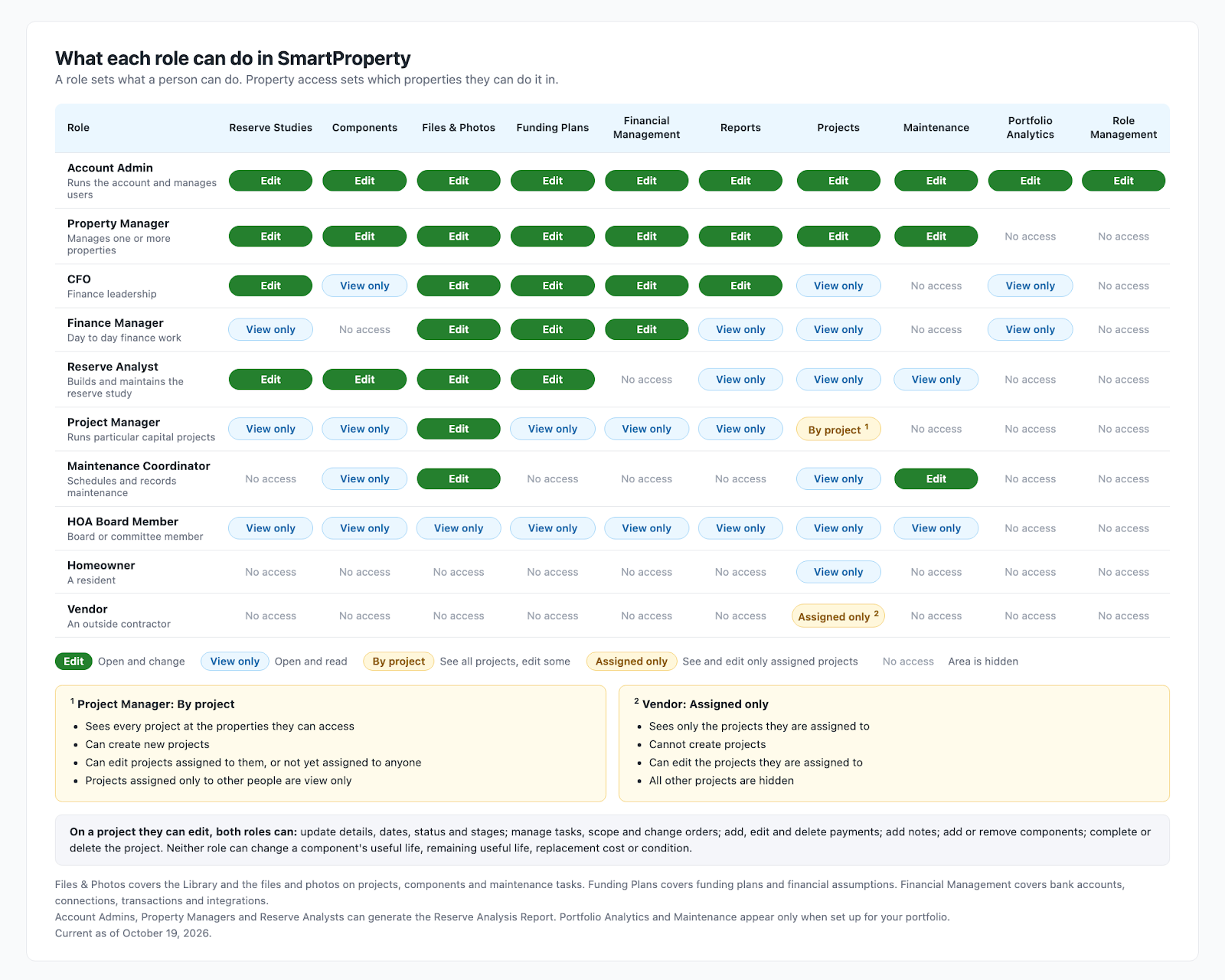
The tables below show which areas each role reaches.
Setup
Changing a person's role needs "Role Management" edit access. Account Admin has it.
A person has one role. To give someone different access, change their role rather than adding a second one.
A role applies across every property that person can reach. There is no per-property role.
Some areas are only present when SmartProperty has set them up for your portfolio, including Portfolio Analytics and Maintenance. A role that reaches an area you do not have will not show it.
How-to
Select "PORTFOLIO" in the top navigation bar, then "User" in the left menu.
Find the person in the list and open their record.
Change the role, then save.
Ask the person to refresh the page. A role change reaches them once their screen reloads.
To invite someone who is not yet in SmartProperty, see Add a user and choose which properties they can see.
Reference
Access levels
Five levels appear in the tables below.
"Edit". Open the area and change what is in it.
"View only". Open the area and read it. Controls for adding, changing and removing are not shown.
"By project". Access is given for particular projects rather than for Projects as a whole. Used for Project Managers.
"Assigned only". Access is limited to the items that person has been assigned to. Used for Vendors.
"No access". The area is hidden. It does not appear in the menu for that person.
"Files & Photos" covers the "Library" and the files and photos on projects, components and maintenance tasks. "Funding Plans" covers funding plans and financial assumptions. "Financial Management" covers bank accounts, bank connections, transactions and integrations.
The ten roles
| Role | Who it is for |
|---|---|
| Account Admin | The person running the account. The highest level of access, including managing users. |
| Property Manager | The manager responsible for one or more properties. |
| CFO | Finance leadership. Full access to financial areas, read access elsewhere. |
| Finance Manager | Day to day finance work. |
| Reserve Analyst | The analyst who builds and maintains the reserve study, often from an outside reserve study firm. Covers reserve studies, components and funding plans, with read access to projects and maintenance, and no access to bank accounts, transactions or users. |
| Project Manager | Runs particular capital projects. |
| Maintenance Coordinator | Schedules and records maintenance work. |
| HOA Board Member | A volunteer board or committee member. Read access across the areas a board reviews, with no ability to change anything. |
| Homeowner | A resident. Read access to projects only. |
| Vendor | An outside contractor. Access only to the projects they are assigned to. |
What each role reaches: studies, components, files and photos, funding plans, finances and reports
| Role | "Reserve Studies" | "Components" | "Files & Photos" | "Funding Plans" | "Financial Management" | "Reports" |
|---|---|---|---|---|---|---|
| Account Admin | "Edit" | "Edit" | "Edit" | "Edit" | "Edit" | "Edit" |
| Property Manager | "Edit" | "Edit" | "Edit" | "Edit" | "Edit" | "Edit" |
| CFO | "Edit" | "View only" | "Edit" | "Edit" | "Edit" | "Edit" |
| Finance Manager | "View only" | "No access" | "Edit" | "Edit" | "Edit" | "View only" |
| Reserve Analyst | "Edit" | "Edit" | "Edit" | "Edit" | "No access" | "View only" |
| Project Manager | "View only" | "View only" | "Edit" | "View only" | "View only" | "View only" |
| Maintenance Coordinator | "No access" | "View only" | "Edit" | "No access" | "No access" | "No access" |
| HOA Board Member | "View only" | "View only" | "View only" | "View only" | "View only" | "View only" |
| Homeowner | "No access" | "No access" | "No access" | "No access" | "No access" | "No access" |
| Vendor | "No access" | "No access" | "No access" | "No access" | "No access" | "No access" |
What each role reaches: projects, maintenance and administration
| Role | "Projects" | "Maintenance" | "Portfolio Analytics" | "Role Management" |
|---|---|---|---|---|
| Account Admin | "Edit" | "Edit" | "Edit" | "Edit" |
| Property Manager | "Edit" | "Edit" | "No access" | "No access" |
| CFO | "View only" | "No access" | "View only" | "No access" |
| Finance Manager | "View only" | "No access" | "View only" | "No access" |
| Reserve Analyst | "View only" | "View only" | "No access" | "No access" |
| Project Manager | "By project" | "No access" | "No access" | "No access" |
| Maintenance Coordinator | "View only" | "Edit" | "No access" | "No access" |
| HOA Board Member | "View only" | "View only" | "No access" | "No access" |
| Homeowner | "View only" | "No access" | "No access" | "No access" |
| Vendor | "Assigned only" | "No access" | "No access" | "No access" |
Project Manager: what By project means
A Project Manager sees every project at the properties they can access.
A Project Manager can create new projects.
A Project Manager can edit projects assigned to them, and projects not yet assigned to anyone.
Projects assigned only to other people are view only.
Vendor: what Assigned only means
A Vendor sees only the projects they are assigned to.
A Vendor cannot create projects.
A Vendor can edit the projects they are assigned to.
All other projects are hidden.
What both roles can change on a project
On a project they can edit, a Project Manager and a Vendor can update details, dates, status and stages. They can manage tasks, scope and change orders. They can add, edit and delete payments, add notes, and add or remove components. They can complete or delete the project.
Neither role can change a component's useful life, remaining useful life, replacement cost or condition.
The Reserve Analysis Report
Account Admins, Property Managers and Reserve Analysts can generate the Reserve Analysis Report. Other roles with "Reports" access can view it.
If someone cannot see an area they expect
Check these in order.
Their role. Use the tables above. An area marked "No access" is hidden from that role.
Their property access. A role grants nothing on a property the person cannot reach.
Whether the area is set up for your portfolio. Portfolio Analytics and Maintenance are switched on by SmartProperty.
Whether they have reloaded. A change to a role or to property access reaches an open screen once it is refreshed.
If all four are right and the area is still missing, contact SmartProperty.